top of page
A5 - Poly Modeling & Editing
3D Model of Polly Plantar from "Amphibia"
I used basic primitive shapes and then used several deformers to create the shapes. And to replicate the shapes, I would use the mirror mesh tool. I also did the smooth tool to get smoother curves. Polly is a pollywog from the Disney animated show, "Amphibia". So I was sure to use lots of round and spherical shapes to make the character. References photos are below.


Mesh Editing Techniques
-
Add Divisions
-
Splits selected polygon components (edges or faces) into smaller components.
-
-
Bevel
-
Creates beveled polygons along the currently selected edges or faces.
-
-
Bridge
-
Constructs a bridging polygon mesh (additional faces) between selected pairs of border edges on an existing polygon mesh. The resulting bridging polygon mesh is combined with the original polygon mesh and the edges are merged.
-
-
Circularize
-
Circularize components
-
-
Collapse
-
Collapses edges on a component by component basis and then merges the associated vertices for each collapsed edge separately.
-
-
Connect
-
When vertices and/or edges are selected, Connect connects them via edges. Vertices are connected directly to connecting edges, while edges are connected at their midpoint.
-
-
Detach
-
When vertices are selected, Detach separates any selected vertex that is shared by multiple faces into multiple vertices depending on the number of faces the vertex shares. The edges of the faces associated with the vertex also become unshared as a result. When faces are selected, Detach separates the face selection along its perimeter edges. When edges are selected, Detach separates the selected edges into two overlapping edges. If you perform a Detach operation over a path of edges, the vertices along that path are also separated along that path. The vertices at the ends of each selection remain attached to both of the new edges or edge paths. If both vertices and edges are selected, Detach defaults to the same behavior as when only vertices are selected.
-
-
Extrude
-
Pulls new polygons out from existing faces, edges, or vertices, with options to transform and reshape the new polygons as they are pulled out from the selected originals.
-
-
Merge
-
Merges selected edges and vertices that are within a specified threshold distance of each other.
-
-
Merge to Center
-
Merges the selected vertices so they become shared, and any associated faces and edges are also merged. The resulting shared vertex is positioned at the center of the original selection.
-
-
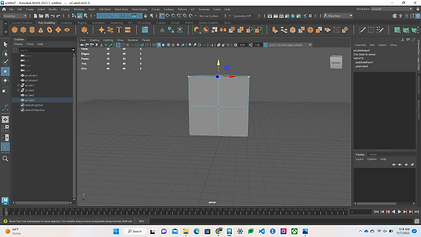
Transform
-
Transform lets you move, rotate, or scale polygon components (edges, vertices, faces, and UVs) relative to the normal while creating a history node.
-
-
Flip
-
Swaps the position of selected components with their mirrored counterparts across an axis of symmetry.
-
-
Symmetrize
-
Moves components to the mirrored position of the corresponding components across an axis of symmetry.
-
-
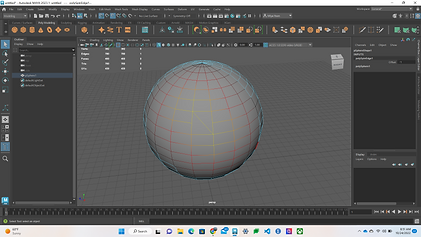
Average Vertices
-
Smooths the polygon mesh by moving the positions of the vertices.
-
-
Chamfer Vertices
-
Replaces a vertex with a flat polygon face
-
-
Flip Triangle Edge
-
Switches the polygon edge dividing two triangle polygons so it connects between their opposite corners.
-
-
Spin Edge Backward
-
Spins the selected edges opposite to their winding direction, changing their connectivity 1 vertex at a time.
-
-
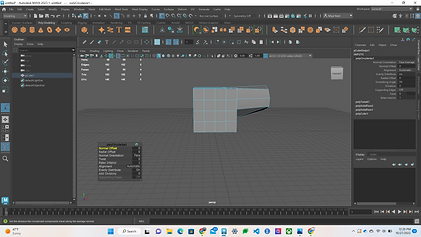
Poke
-
Splits the selected faces to let you push or pull the center of the original polygon.
-
-
Wedge
-
Pulls an arc of new polygons from existing faces.
-
-
Project Curve on Mesh
-
Projects a curve onto a polygon surface.
-
.png)
.png)
.png)
.png)

.png)
.png)
.png)
.png)
.png)
.png)
.png)
.png)
.png)
.png)

.png)
.png)
.png)
.png)
.png)
.png)
.png)
.png)
.png)
.png)
.png)
.png)
.png)
.png)
.png)
.png)
.png)
.png)
.png)
bottom of page